
How to rebuild the icon cache in Windows 11
How to rebuild the icon cache in Windows 11
Windows 11 uses the icon cache extensively to display icons of applications and other elements of the operating system. It is designed to speed up the loading and display of icons.
Sometimes, issues may arise. A common issue is corruption of the icon cache. This may lead to the display of wrong, old, duplicate, missing, or broken icons and other issues.
The reason for this, most of the time, is corruption of the icon cache. The solution in that case is to rebuild the icon cache.
This guide explains how that is done on Windows 11. The same method works on Windows 10 as well.
Rebuilding the icon cache in Windows 11
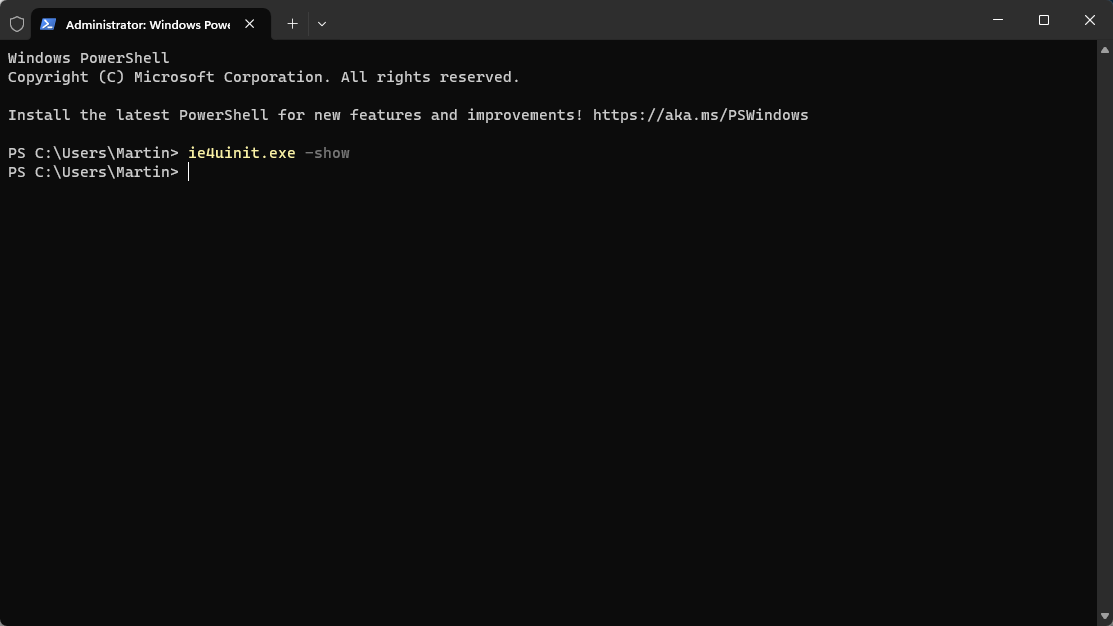
You can rebuild the icon cache using a single command. Here is how that is done:
- Use the keyboard shortcut Windows-X to display the administrative menu.
- Select Terminal from the menu.
- Confirm the security prompt by selecting the option yes.
- Paste the command "ie4uinit.exe -show" and press the Enter-key.
Note that you do not get a response; this is normal and nothing to worry about.
The Sledgehammer method
If the above command does not fix the icon cache on the Windows 11 system, you may try the following, which is more powerful.
- Open the Start menu.
- Type cmd and select Command Prompt to launch it.
- Paste the command ie4uinit.exe -show and press the Enter-key.
- Paste the command taskkill /IM explorer.exe /F and press the Enter-key.
- Paste the command CD %userprofile%\AppData\Local and press the Enter-key.
- Type del iconcache.db /a and press the Enter-key.
- Paste the command CD %localappdata%\Microsoft\Windows\Explorer\ and press the Enter-key.
- Type del iconcache* and press the Enter-key.
- Type start explorer.exe and press the Enter-key.
You probably wonder what some of the commands do.
- taskkill /F /IM explorer.exe - This commands force kills the explorer.exe process. Note that this removes the taskbar among other things when executed. Don't worry, the command start explorer.exe restarts Explorer at the end.
- CD /d %userprofile%\AppData\Local - This command changes the directory to the user's \AppData\Local directory.
- del IconCache.db /a /f /q - This command deletes the file IconCache.db
- del iconcache* /a /f /q -- The command deletes all files that start with iconcache in the folder %localappdata%\Microsoft\Windows\Explorer\.
Rebuilding does not resolve all issues related to icons
Rebuilding works if the icon cache has become corrupted. It does not work in some other cases. For example, when an icon file gets moved or deleted on the system.
More like this
-
PSA: Raivo OTP for iOS was acquired by Mobime a few months ago
 PSA: Raivo OTP for iOS was acquired by Mobime a few months agoRead more
 -
iOS 17.2.1 is reportedly causing connectivity issues for some users
iOS 17.2.1 is reportedly causing connectivity issues for some usersRead more
-
Windows 10 Start Menu will soon display ads for Microsoft 365
Windows 10 Start Menu will soon display ads for Microsoft 365Read more
-
New File Pilot Beta Redefines File Management on Windows 11
New File Pilot Beta Redefines File Management on Windows 11Read more
-
Meta didn't want Apple Intelligence in its apps for iOS
Meta didn't want Apple Intelligence in its apps for iOSRead more